Ankle Monitor Script
Resource folder:
gs_anklemonitor
Features and pricing are on the Ankle Monitor Script product page. Related resources are on the FiveM police scripts page.
Installation Instructions for Ankle Monitor Script
Follow these steps to install and configure
gs_anklemonitor on your FiveM server.
-
Download the Resource
- Go to portal.cfx.re
-
Navigate to Assets > Granted Assets >
gs_anklemonitor - Download the resource
-
Extract the Files
-
Open the downloaded
.zipfile -
Inside, you'll find a folder named
gs_anklemonitor -
Move the entire
gs_anklemonitorfolder into your desired server resources folder (e.g.,/resources/[scripts])
-
Open the downloaded
-
Add to Server Configuration
- Open your
server.cfg -
Add the following line:
ensure gs_anklemonitor
- Open your
-
Restart the Server
- Restart your FiveM server (Important!)
-
Configure the Script (Optional)
- Navigate to
gs_anklemonitor/config.lua - Edit the configuration options to fit your server's needs
- Navigate to
Additional documentation
Available server-sided exports:
Add an ankle monitor to a specific player:
exports.gs_anklemonitor:AddAnkleMonitor(serverId)
Remove an ankle monitor from a specific player.
exports.gs_anklemonitor:RemoveAnkleMonitor(serverId)
You can use these exports to, for instance, remove the ankle monitor from a player upon death. You can also check if a player is wearing an ankle monitor using:
local isWearingAnkleMonitor = Player(serverId).state.ankleMonitorNetId ~= nil
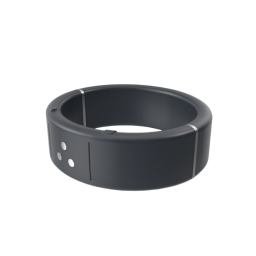
Add the following items to your ox_inventory/data/items.lua
file:
['ankle_monitor'] = {
    label = 'Ankle Monitor',
    weight = 250,
},
Execute the following SQL query to add the items to the database:
INSERT INTO
	`items` (`name`, `label`, `weight`, `rare`, `can_remove`)
VALUES
	('ankle_monitor', 'Ankle Monitor', 0, 0, 1);
Add the following items to your qb-core/shared/items.lua
file:
['ankle_monitor'] = {
    ['name'] = 'ankle_monitor',
    ['label'] = 'Ankle Monitor',
    ['weight'] = 250,
    ['type'] = 'item',
    ['image'] = 'ankle_monitor.png',
    ['unique'] = false,
    ['useable'] = false,
    ['shouldClose'] = true,
    ['combinable'] = nil,
},
Can I restrict who sees monitor blips with ACE permissions?
No. Visibility is controlled through jobs, not ACE permissions. Set Config.RequiredJobs so only allowed jobs can apply monitors and see blips. Recent versions also include commands to toggle blips on or off per player or for all monitors.
How do I require a police job and an inventory item?
Set both in config.lua:
Config.RequiredJobsfor allowed jobs (for example{'police'})Config.RequiredItemfor the item name (for example'ankle_monitor')
Job names must match your framework exactly. Add the item to your inventory system and restart the server.
Who can remove an ankle monitor?
Fully configurable. Restrict removal with Config.RequiredJobs, allow civilians to lockpick monitors through Config.Lockpick, or disable lockpicking entirely with Config.Lockpick.Enabled = false.
The monitor attaches but map blips do not show when job restrictions are enabled
On older ESX versions, ESX.GetExtendedPlayers('job', jobs) can return empty even when police are online. Update the bridge or apply the support patch for Functions.GetPlayersToReceiveMonitorLocations in bridge/sv_bridge.lua. Test with Config.RequiredJobs = nil first to confirm the monitor itself works.
The toggle blips command for a player name does not work
The per-player blip command uses the target's character name, not their server ID. The player must have a monitor physically attached. If it still fails, verify Functions.GetPlayerName in bridge/sv_bridge.lua returns the correct name.
How do I set up the toggle monitor command?
Set Config.CommandName to your desired command (for example 'toggle_monitor') instead of nil. Usage is /toggle_monitor <server-id> with the target's server ID, not citizen ID or state ID. This command toggles the monitor on and off; it is not a track-only command.
Additional commands:
Config.ToggleAllBlipsCommandtoggles all monitor blips on or offConfig.TogglePlayerBlipsCommandtoggles one player's blip by character name
Can all blips stay hidden until an officer searches for someone?
Yes, but it requires a small custom edit. Add code at the bottom of bridge/cl_bridge.lua to run the toggle-all-blips command on script start so blips begin hidden. Officers can then turn all blips on or toggle individual players as needed.
qb-target interaction does not show when job restrictions are enabled
Update to Keymaster version 1.1.0 or newer, which fixes the qb-target job check issue. On older versions, check F8 for errors, increase Config.Target.Distance, and confirm your job name matches. qb-target 5.5.0 is confirmed working.
Can I add ankle monitor to qb-radialmenu?
Not easily. The toggle command needs a target player server ID as an argument, which qb-radialmenu cannot pass reliably. Use the command directly or stick with ox_target or qb-target on the player.
How do I add the ankle monitor item to ox_inventory?
Add the item to ox_inventory/data/items.lua and set Config.RequiredItem in config to the same item name. An item image is available from support documentation.
Does the monitor persist after disconnect or server restart?
Yes, when Config.SaveToDatabase = true. You must also run insert.sql, uncomment @oxmysql/lib/MySQL.lua in fxmanifest.lua, and follow all setup steps documented near that config option. Verify a database row appears after applying a monitor.
The monitor data saves but the prop is missing from the leg after reconnect
This can happen when your multichar or character select system loads the ped before the script reattaches the prop. The blip and database record may still be valid even when the visible prop is missing.